Holy Private Bookmarks

AES-256 encrypted bookmarks with master password protection. Zero cloud, zero tracking — everything stays on your device.

100%
Local data
AES-256
Encryption
Free
Open source

Everything you need

A full-featured bookmark manager that puts privacy first

AES-256-GCM Encryption

Every bookmark title, URL, and folder name is encrypted locally using military-grade encryption. Even if someone extracts your browser storage, they see only ciphertext.

Auto-Lock Timer

Extension automatically locks after 10 minutes of inactivity. Step away from your desk and your bookmarks stay protected. You can also lock manually with the lock icon in the popup or the Alt+L shortcut.

Nested Folders

Create unlimited folder hierarchies with drag & drop support. Rename or delete folders inline. Each folder shows how many bookmarks it contains.

Clear Browsing History

One click removes Chrome's browsing history for all domains in your bookmarks — so no traces are left even outside the extension. Great for privacy.

QR Code

Click the three-dot icon next to any bookmark and select "QR Code". Instantly open it on your phone — no copying needed.

Quick Tab Close Alt+A

Press Alt+A (macOS: Cmd+Shift+A) to instantly close the current tab and delete all browsing history for its domain. Can be enabled/disabled in Settings → Privacy.

Full-text Search

Real-time search through all bookmarks by title or URL directly in the manager. Find anything instantly across all folders — no more endless scrolling.

Encrypted Backup & Restore

Export an encrypted backup file anytime. Restore it on the same or different device — your data stays encrypted throughout. Your password is required to restore.

Bulk Operations

Select multiple bookmarks with Ctrl+click, then move or delete them all at once. Massive time saver for organizing your collection.

Popup Interface

Quick access to your bookmarks right from the toolbar

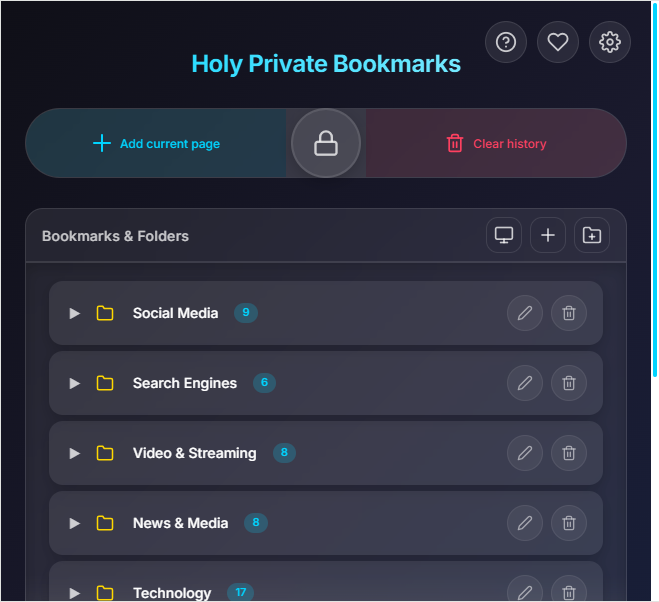
Main popup window showing bookmarks tree in Holy Private Bookmarks
Main popup — bookmarks tree at a glance

What you can do from the popup:

  • Save bookmarks two ways

    "Add Current Page" saves the tab you're on with folder selection.

    The toolbar icon lets you manually enter URL and title.

  • Create folders

    The icon in the toolbar creates a new folder right in the popup.

  • Quick actions per bookmark

    Hover over any bookmark and click the icon to edit, delete, or generate a QR code.

  • Clear History

    Remove browsing history for all bookmarked domains

  • Lock & Quick Close

    Lock the extension instantly with the lock icon or Alt+L. Alt+A closes the current tab and wipes its domain history in one keystroke. Both: macOS uses Cmd+Shift instead of Alt.

Security in depth

Your master password never leaves your device — and neither does your data

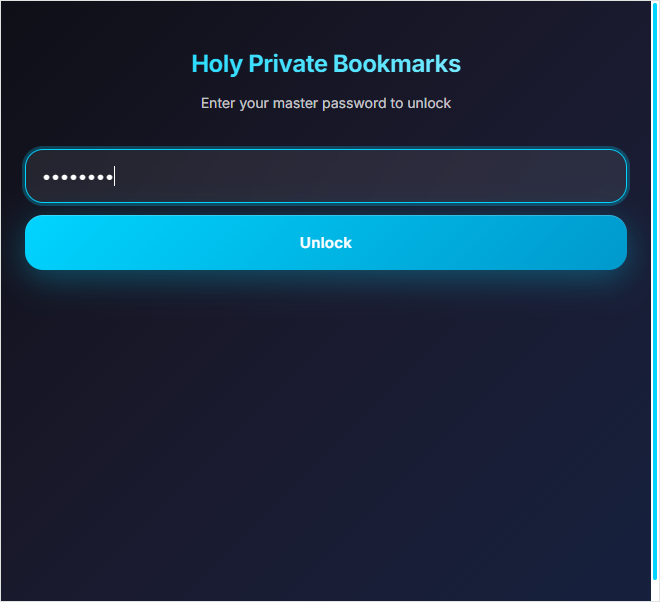
Lock screen with master password input in Holy Private Bookmarks
Secure lock screen — the only way in
  • AES-256-GCM encryption

    The same encryption standard used by banks and government systems. Data is encrypted before being written to storage, not after.

  • Auto-lock after inactivity

    Automatically locks after 10 minutes of inactivity. Lock manually anytime with the popup lock icon or Alt+L shortcut (macOS: Cmd+Shift+L). The "Stay Unlocked" setting in Settings disables auto-lock.

  • No password recovery by design

    There is no "forgot password" option — because that would require storing a recovery key, which weakens security. Store your password in a password manager.

Full Bookmark Manager

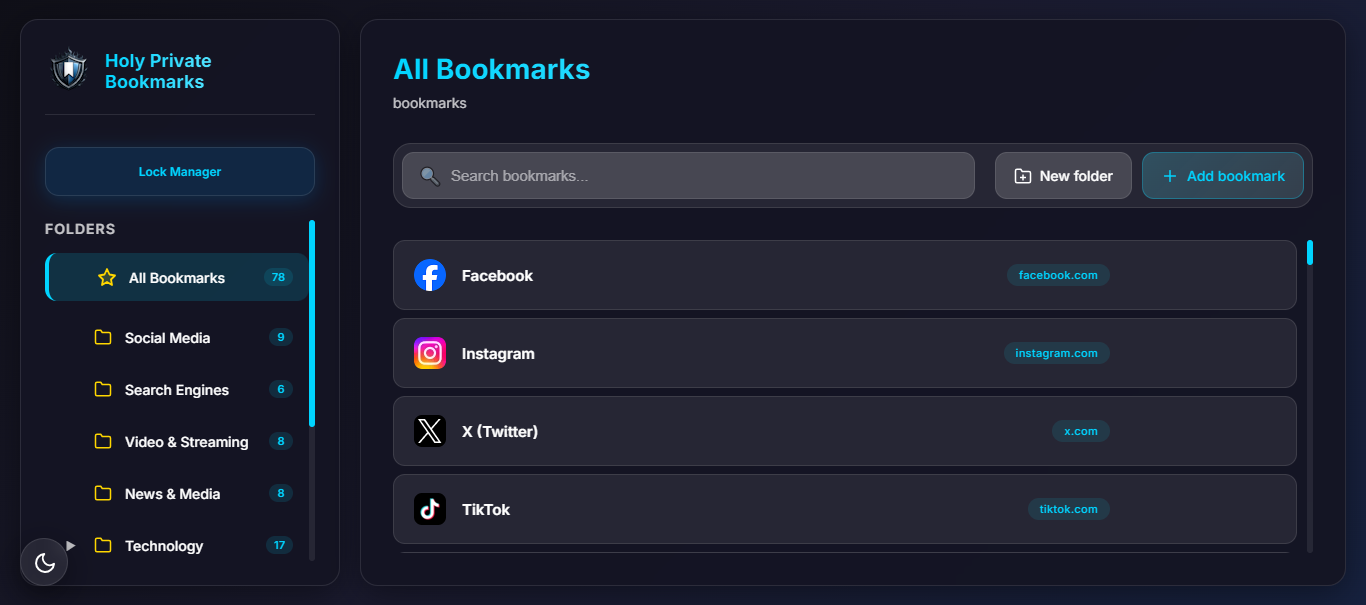
When you need more than a quick save — open it via the toolbar icon in the popup, or use the Alt+M shortcut (macOS: Cmd+Shift+M)

  • Real-time search

    Filter bookmarks by title or URL as you type — across all folders at once. Instant results.

  • Folder tree in the sidebar

    All your folders are listed on the left. Click any folder to filter the grid — or click "All Bookmarks" to see everything at once. Breadcrumbs at the top always show where you are.

  • Drag & drop

    Drag any bookmark onto a folder in the sidebar or onto another folder card in the grid to move it. Reorder items within a folder the same way.

  • Multi-select & bulk move

    Hold Ctrl and click to select multiple bookmarks. A toolbar appears with "Move selected" and "Delete selected" — move them all to any folder in one step.

  • Quick actions per bookmark

    Hover over any bookmark and click the icon to edit, delete, or generate a QR code.

  • Lock from the manager

    The "Lock Manager" button in the sidebar instantly encrypts and locks the session — same as Alt+L in the popup.

Bookmark manager in Holy Private Bookmarks
Bookmark manager

QR Code

Open any bookmark on your phone in seconds

QR code modal for a bookmark in Holy Private Bookmarks
QR code modal — scan to open on any device
  • Quick actions menu

    Click the three-dot icon on any bookmark, then select "QR Code" from the menu — the code appears instantly.

  • Scan with any phone

    No app needed — any phone camera with a QR reader can open the URL immediately. Works on iPhone, Android, and tablets.

Global Keyboard Shortcuts

Speed up your workflow without touching the mouse

Quick Close Tab

Instantly close the current tab and delete all browsing history for its domain. Can be enabled/disabled in Settings → Privacy.

Alt + A
Lock Extension

Instantly encrypt and lock the extension — no one can access your bookmarks without the master password

Alt + L
Open Manager

Open the bookmark manager without clicking the toolbar icon

Alt + M

On macOS, use Cmd+Shift instead of Alt — e.g. Cmd+Shift+A, Cmd+Shift+L, Cmd+Shift+M. Shortcuts can be reassigned in Chrome at chrome://extensions/shortcuts. The "Change Shortcuts" button in Settings opens that page directly.

Settings & Backup

Theme, privacy toggles, shortcuts, password change, backup, import — all in one place

  • Theme selection

    Dark, Light, or match the system setting (three options). Changes apply instantly — no restart needed.

  • Encrypted backup, restore & import

    Export an encrypted backup (password required to restore), restore from backup, import bookmarks from an HTML file (Netscape format, max 1 MB), or export to standard HTML for use in any browser.

  • Privacy & behavior toggles

    Show or hide favicons, enable/disable Quick Close Tab, and toggle "Stay Unlocked" — which keeps the extension unlocked between browser sessions (disabled by default for security).

  • Change shortcuts

    Opens Chrome's extensions shortcut page (chrome://extensions/shortcuts) where Alt+A, Alt+L, and Alt+M can be reassigned.

  • Change master password

    Update your password anytime. All data is automatically re-encrypted with the new key. Old password is required.

  • Import from Chrome

    Full import of all Chrome bookmarks with folder structure, or selective import to pick specific folders. Existing bookmarks are not overwritten.

Settings panel with theme selector in Holy Private Bookmarks
Settings panel — theme, privacy, shortcuts, password, backup, import

Frequently Asked Questions

Quick answers to common questions

How secure is my data?

+

All your bookmarks are encrypted locally using AES-256-GCM encryption with a master password. Your data never leaves your computer. Even we cannot access your bookmarks without your password. The encryption key is derived from your password using PBKDF2 with 600,000 iterations.

What if I forget my password?

+
Password cannot be recovered

We don't store your password or any recovery keys. If you forget your password, you will permanently lose access to all your encrypted bookmarks. Please save your password in a secure password manager like Bitwarden, 1Password, or KeePass.

How do I add bookmarks?

+
  • Click "Add Current Page" in the popup to save the tab you're viewing
  • Click the icon in the popup toolbar to add a bookmark manually (enter URL and title)
  • Right-click any page or link and select "Add to Holy Private Bookmarks"
  • Open the bookmark manager (toolbar icon or Alt+M) and add from there

How do I create folders?

+
  1. Open the extension popup
  2. Click the icon in the popup toolbar to create a new folder
  3. Enter a folder name and confirm
  4. Drag and drop bookmarks into the folder

Can I backup my bookmarks?

+

Yes! Go to Settings → Export & Import → Create Backup. This creates an encrypted backup file. You can restore it anytime using the Restore Backup option.

What does 'Clear History' do?

+

Removes Chrome browsing history for all domains in your bookmarks. This helps maintain privacy by automatically clearing history traces of bookmarked sites. The operation shows a progress bar and can be cancelled at any time.

What does Alt+A do?

+

Alt+A (macOS: Cmd+Shift+A) instantly closes the current browser tab and automatically deletes all browsing history for that domain. A quick shortcut for a discreet exit. Can be reassigned in Chrome at chrome://extensions/shortcuts or via the "Change Shortcuts" button in Settings.

The extension won't unlock

+

If you can't unlock:

  • Make sure you're entering the correct master password (case-sensitive)
  • Try reloading the extension from chrome://extensions
  • If password is forgotten, it cannot be recovered — your data will be lost

Can I import from Chrome?

+

Yes! Open the popup → click the gear icon (Settings) → scroll to the Import from Chrome section. Choose full import (all folders) or selective import (pick specific folders). Your existing bookmarks are preserved — nothing is overwritten.

Can I share a bookmark via QR code?

+

Yes! Hover over any bookmark, click the three-dot icon that appears, and select "QR Code" from the quick actions menu. Scan the generated code with any phone camera to instantly open the URL — no copying or typing required.

Still have questions?

Contact us or check the GitHub repository:

Ready to take back your privacy?

Free, open source, no account needed. Install in 10 seconds and start saving bookmarks that actually stay private.